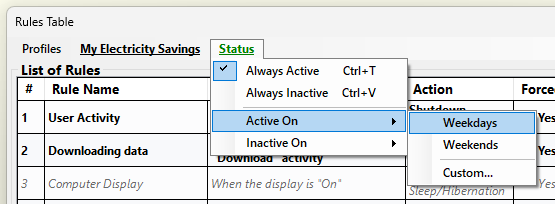
A profile can be active all the time, never, or only on certain days and times. While a profile is not active, its rules are not executed. To choose when the active profile runs, open the “Rules Table” window and open the “Status” menu. The label above the list of rules shows whether the profile is active right now: “Profile is Active” in green or “Profile is Inactive” in orange-red. The “Status” menu itself is shown in the same colour.
Choosing “Custom...” opens the “Profile Active During” window (“Profile Inactive During” when chosen under “Inactive On”). Tick the days under “Week Days”, choose a time range under “Time of Day” (or tick “Entire Day”) and click “Add” to add that period to the list. To change a period, select it in the list, adjust it and click “Update”; to remove it, select it and click “Delete”. Click “Save” when you are done.
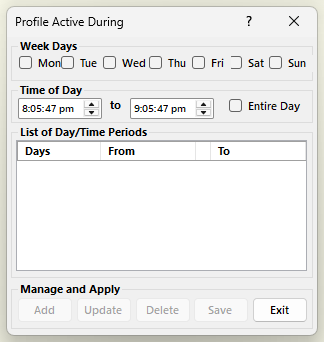
Finally click “Apply” in the “Rules Table” window to save and apply the new schedule.
AutoStandByPro checks the schedule of the active profile every second. When the profile becomes inactive, AutoStandByPro pauses the processing of its rules:
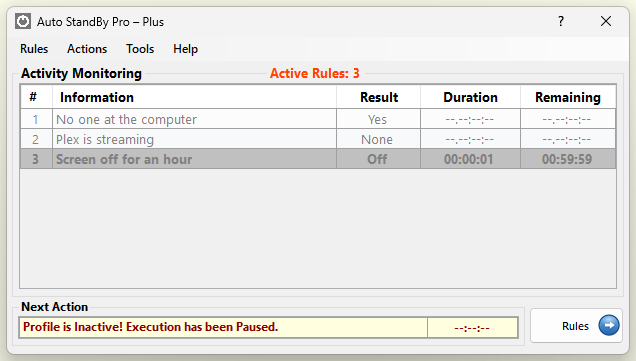
As soon as the schedule makes the profile active again, AutoStandByPro resumes the processing of the rules by itself — but only if it was the schedule that paused them. If you had started a pause yourself (from the “Pause” menu) before the profile became inactive, that pause is kept: the profile becoming active again does not resume the rules, and you still need to resume it yourself when you are ready.
“Active On” and “Inactive On” are AutoStandByPro Plus features. “Always Active” and “Always Inactive” are available to everyone. A schedule that was set up earlier keeps working without Plus.