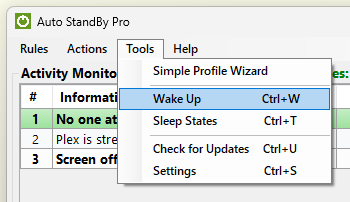
In order to Wake Up your computer from a sleep state first open the "Activity Monitoring" window and from the “Tools” menu select “Wake UP”. The “Wake UP Time List” window appears. Here you can view any active Wake UP events. Wake UP events are sorted in the “Wake UP Time List” in ascending order from the earliest occurring event to the latest occurring one.
Please note that If the “Wake Up” option is not available then this suggest that your computer either does not support Wake UP capabilities or has those capabilities disabled. Please check your computer’s settings whether or not it supports wake up capabilities and if yes check how to enabled them.
Modern Standby computers: some laptops use Modern Standby (S0 Low Power Idle) and have no wake alarm device – a hardware timer that can wake them. On such a computer Windows accepts a wake timer but never wakes the computer at the set time, so AutoStandByPro tells you that Wake Timers cannot be used and does not open the Wake UP window. Sleep and Hibernation rules are not affected. Classic (S3) sleep computers, such as older laptops and desktops, are not affected.
Computers without Sleep or Hibernation: some computers, for example virtual machines, support neither Sleep nor Hibernation. Wake Timers are not supported on such a computer, so AutoStandByPro tells you so and does not open the Wake UP window.