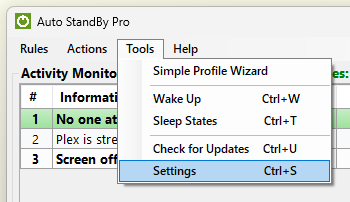
AutoStandByPro settings are user specific (each user can specify his/hers own settings). In order to customize the settings open the “Activity Monitor” window and from the “Tools” menu select “Settings”.
AutoStandByPro settings are divided into five categories:
After changing any settings please click on the “Save” button to save the changes and then click on “OK” to apply them. The “Application Settings” window will automatically be closed when the settings are saved and applied.
In order to revert to the default settings of a particular category please click on the “Default” button of that category and then click on “Yes” on the new opened window. To save and apply the changes please click on the “Save” button.
If you need to exit the “Application Settings” window please click on the “Exit” button. If you have made any changes in the “Application Settings” window in any category since you last opened the window, then AutoStandByPro will ask for confirmation before exiting. Click “Yes” to exit and lose any changes or “No” to return to the “Application Settings” window without exiting.
Please note that each time you save and apply any settings then all active rules are reset.