Power Settings
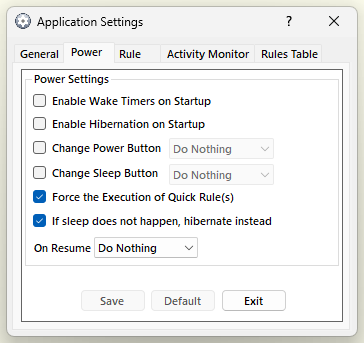
- Enable Wake Timers on Startup
If selected AutoStandByPro will attempt to enable Wake Timers every time it starts up. If this option is not available then this suggest that your computer either does not support Wake UP capabilities or has those capabilities disabled. Please check your computer’s settings whether or not it supports wake up capabilities and if yes how to enabled them.
- Enable Hibernation on Startup
If selected AutoStandByPro will attempt to enable Hibernation every time it starts up.
- If sleep does not happen, hibernate instead
Some computers, those with Modern Standby (see My computer did not go to sleep), can refuse to go to sleep when asked, for example because a driver keeps them awake. AutoStandByPro checks this about 30 seconds after it asked the computer to sleep. If this option is selected and the computer still did not sleep, AutoStandByPro hibernates the computer instead. If Hibernation is turned off, AutoStandByPro turns it on first, in the same way as the Enable button in Tools > Supported Sleep States, so you can turn it off again there later. This option is selected by default on computers with Modern Standby and not selected on other computers. It is greyed out when your computer does not support Hibernation.
- Change Power Button
Changes the Power Button to one of the following options:
- Do Nothing
If selected no action will be taken when user selects the Power Button.
- Sleep
If selected computer will sleep when user selects the Power Button.
- Shutdown
If selected computer will Shutdown when user selects the Power Button.
- Change Sleep Button
Changes the Sleep Button to one of the following options:
- Do Nothing
If selected no action will be taken when user selects the Sleep Button.
- Sleep
If selected computer will sleep when user selects the Sleep Button.
- Force the Execution of Quick Rule(s)
If selected AutoStandByPro will execute the action of a Quick Rule even where there is another active rule that is Preventing Sleep/Hibernation.
- On Resume
When the computer is resume from a sleep state then AutoStandByPro can do one of the following:
- Do Nothing
Do nothing on resume.
- Pause Execution
Pause the processing of the rules.
- Execute Files
When selected AutoStandByPro will ask you for a location of executable(s) file(s) (*.exe,*.bat) that will be executed on resume. All executable(s) will be executed in parallel so if an executable takes to long to finish or it freezes the other file(s) will not be stuck.