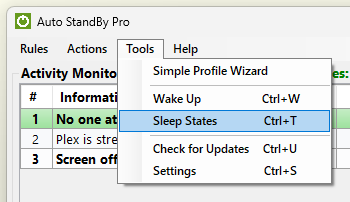
AutoStandByPro can detect and help configure the sleep states your computer supports. Open the “Activity Monitor” window and from the “Tools” menu select “Sleep States” (or press Ctrl+T).
The “Supported Sleep States” window opens and shows one row for each sleep state your computer supports, so the number of rows depends on your computer.
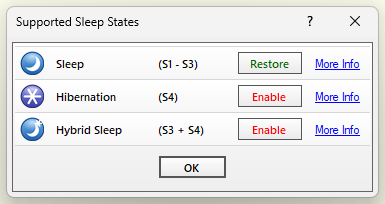
The rows that can appear are:
Is a Modern Standby computer really asleep? Yes, but it is a different kind of sleep. The old S3 sleep stops the processor completely. Modern Standby keeps the computer in a very low-power state in which it can still wake briefly for background work such as mail or updates, like a phone, and it wakes instantly. Windows has no command that means “enter Modern Standby now”; the normal way in is to turn the display off, which is what the power button and closing the lid do, and what AutoStandByPro does. Windows then decides when to enter the low-power state, and only if nothing is blocking it (a download, a USB device or a running program can). If you wake the computer very soon after it went to sleep, it may not have fully entered Modern Standby, and in that case Windows will not ask for your password either. Whether Windows asks for your password after waking is a Windows setting (Settings > Accounts > Sign-in options), not something AutoStandByPro controls. To see the real sleep sessions of your computer, run powercfg /sleepstudy in an administrator Command Prompt and open the report it creates. The first time you save a Sleep rule on a Modern Standby computer, AutoStandByPro shows a short, one-time message with this explanation.
Each row has a button to configure the state for use with AutoStandByPro:
For best results it is recommended to choose “Enable” and “Configure” where available.
On a computer with Modern Standby, AutoStandByPro can only ask Windows to sleep, by turning the display off. Whether the computer then really sleeps is decided by Windows, and Windows will not sleep while a program or a driver is keeping the computer awake. AutoStandByPro checks this about 30 seconds after it asked: if Windows has not slept, and you have not used the computer in the meantime, it writes the reason to the log and tells you, naming what Windows says is keeping the computer awake. It does this only once for each time you leave the computer: if Windows refuses to sleep several times while you are away, you are told once, when you come back and use the keyboard or mouse. The first time ever this is a warning window titled “Windows Did Not Go To Sleep”; after that it is a notification near the system tray, and clicking it shows the same full explanation. Here is what you may see and what to do.
powercfg /requests. Look under SYSTEM and EXECUTION: a program is shown by name (close or update it), a driver by its name, and a service by its name. The log also contains the line “Sleep blockers” with the same information each time a sleep is requested (it needs AutoStandByPro to run with administrator permission).powercfg /sleepstudy and open the report it creates. It lists every period in which the display was off or the computer really slept. A period that ends with “No CS Phase” and a long duration is one in which the computer never reached standby. powercfg /a lists the sleep states the computer supports, and powercfg /lastwake shows what woke it last.If you cannot fix it, use Hibernation instead. Hibernation saves your session to disk and switches the computer off, so it does not depend on Modern Standby and nothing running can prevent it. The wake-up is slower than from Sleep. There are two ways to use it: in your rule, choose the action Hibernate instead of Sleep (the notice names the rule that asked for Sleep, so you know which one to change, and suggests this as a way to stop seeing the notice until the problem is fixed); or keep Sleep and select If sleep does not happen, hibernate instead in the Power Settings (see Power Settings). With that option AutoStandByPro hibernates the computer by itself when Windows did not go to sleep, and turns Hibernation on first if it is off. The option is selected by default on computers with Modern Standby and is greyed out on computers that do not support Hibernation. When it is selected and the computer is hibernated, you are told when you come back to the computer, in the same way (a warning window the first time, a notification afterwards), with an extra line saying that AutoStandByPro hibernated the computer instead.
The log (Log.txt) also starts each session with one line naming the computer model, BIOS version and Windows version; if you ask us for support, sending the log helps us see what kind of computer it is. The log stays on your computer unless you send it.