Rule Settings
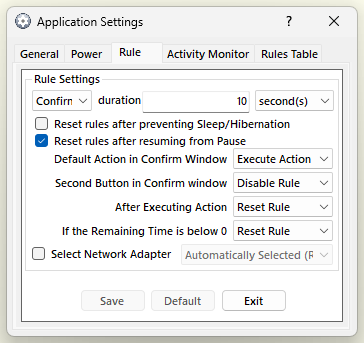
- Confirm/Grace duration
When the Remaining Time of a Rule is less or equal to the Confirm duration, AutoStandByPro will display to the user a confirmation dialog box regarding the execution of the associated action. In order to display the confirmation dialog box for a rule a user must specifically request for it while Creating/Modifying a rule.
When a rule does not require a Remaining Time before executing its associated Action, then when the rule is triggered AutoStandByPro will wait for a Remaining Time equal to the Grace duration before executing the associated action.
Please note that Grace duration must always be less or equal to the Confirm duration.
- Reset rules after preventing Sleep/Hibernation
If selected the Remaining Time of any active rule will be reset when all other active rule(s) that have action Prevent Sleep/Hibernation go inactive.
Please note that Time-Based rules such as "After Specific Time" or "By-Date" can not be reset.
- Reset rules after resuming from Pause
If selected the Remaining Time of any active rule will be reset when AutoStandByPro is resume after being Paused.
Please note that Time-Based rules such as "After Specific Time" or "By-Date" can not be reset.
- Default Action in Confirm Window
Select the default action in a Confirmation dialog box that will be automatically execute the associated action of a rule after the confirm period has passed. The options are "Execute Action" for executing the associated action and "Disable/Reset Rule" to either disable or reset the rule. Whether the second option is either "Disable" or "Reset is chosen according to the next setting "Second Button in Confirm window".
- Second Button in Confirm window
Select what the second button in a Confirmation dialog box can do. The options are either "Disable Rule" that provides the option to disable the rule or "Reset Rule" that provides the ability to reset the rule.
Please note that Time-Based rules such as “After Specific Time” and “By-Date” can not be reset. For these kind of rules the second option will always be “Disabled”.
- After Executing Action
Select whether a rule will be disabled or reset after its associated action is executed.
The options are either "Disable Rule" meaning the rule will be disabled after the associated action of the rule is executed, or "Reset Rule" meaning the rule will be reset after the associated action of the rule is executed.
Please note that for Time-Based rules such as “After Specific Time” and “By-Date” will always be disabled after executing their associated action since these kind of rules can not be reset.
- If the Remaining Time is below 0
Select whether a rule will be reset or execute its associated action if its Remaining Time is below 0 when it is activated (for example after AutoStandByPro was paused and then it is resumed for a period longer than the remaining time of a rule). The options are either "Execute Action" meaning that the associated action of a rule will be automatically executed as soon as it becomes active, or "Reset Rule" meaning the rule will be reset as soon as the the rule becomes active.
Please note that Time-Based rules such as “After Specific Time” and “By-Date” can not be reset and they will be automatically disabled if reset is chosen.
- Select Network Adapter
If selected a user can choose which of the available network adapter(s) will be used to measure the network activity under a “Computer Activity” rule. If it is not selected then AutoStandByPro will automatically select the appropriate network adapter.