Create a New Rule
In order to create a new rule either:
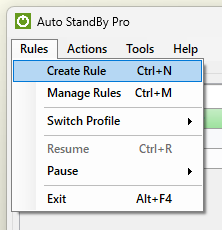
- Open the “Activity Monitor” window and from the “Rules” menu select “Create Rule”.
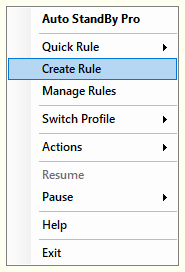
- While the AutoStandByPro application is minimized to the "System Tray" click on the application system tray icon and from the context menu select “Create Rule”.
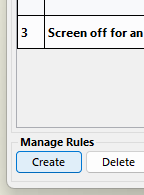
- From the “Activity Monitor” window click on the button “Rules” to open the “Rules Table” window if it is not already open. From the “Rules Table” window click on the “Create” button.
The “Rule Creation” window opens on top of the “Rules Table” window. Here you can create a new rule. The “Rule Creation” window is divided into four sections:
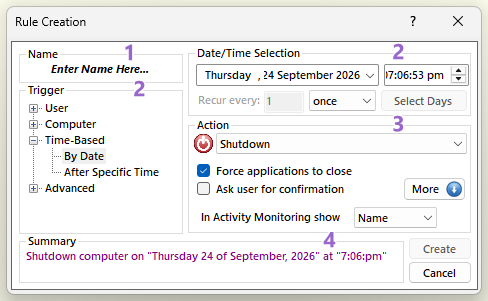
- Name (Top Left)
Here you can type a friendly name that will help better identify this rule in the "Activity Monitoring" window. This is only for display purposes and it does not affect the rule in any other way.
- Trigger (Left Middle and Top Right)
Here you can select the actual condition that you wish to be met before executing your defined action below. On the middle left you can select the condition and on the top right you can provide the data regarding the selected condition. For more info see Triggers.
-
Action (Right Middle)
Here you can specify the Action to be execute along with certain parameters about the execution of the action and some UI settings. For more info see Actions.
-
Summary (Bottom)
The Summary field at the bottom of the “Rule Creation” window is updated automatically to reflect to the choices that you do while creating the rule. The message that appears in summary will explain when the rule will be triggered and what action will be executed when that happens.
When you are done click on the "Create" button to create the Rule. The Rule will appear on the Rules Table” window and it will be placed on the current active Profile. Finally on the "Rules Table" window click on the button "Apply" to save and apply the changes.