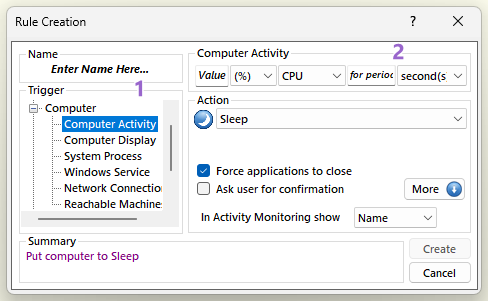
Occurs when the selected activity is below the given threshold for the given period of time. In order to create a rule using this kind of trigger first select from the "Trigger" section 1 "Computer" → "Computer Activity". Then from section 2 first enter the threshold of the activity. Then from the next two drop down menus select the activity and measurement type. The activity type can be either "CPU", "Disk", "Network", "Download" or "Upload". In the "for period" text box enter the period and from the next drop down menu select either "seconds", "minutes", "hours" or "days". The given period indicates the period of which the given activity must be below the threshold before the trigger is activated.
Please note that when the selected Action is "Prevent Sleep/Hibernation" the trigger does not require any given period. In this case the trigger will activate when the given activity is above the threshold.
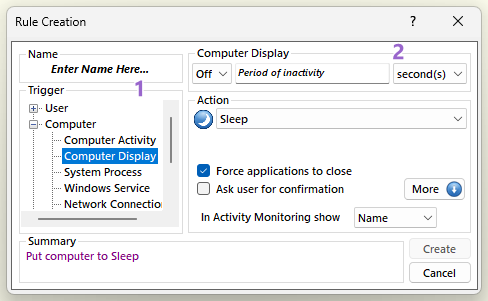
Occurs when the display is either "On" or "Off" for the given period of time. In order to create a rule using this kind of trigger first select from the "Trigger" section 1 "Computer" → "Compute Display". Then from section 2 first select from the drop down menu either "On" or "Off" to indicate the status of the display. In the "Period of inactivity" text box enter the period and from the next drop down menu select either "seconds", "minutes", "hours" or "days". The period of inactivity indicates the period of which the display has to be either "On" or "Off" before the trigger is activated.
Note1: AutoStandByPro can not detect the status of a monitor when you manually turn it On/Off. AutoStandByPro will only detect the status of the display that windows currently reports.
Note2: When the selected Action is "Prevent Sleep/Hibernation" the trigger does not require any given period. In this case the trigger will activate when the display status matches the given On/Off status.
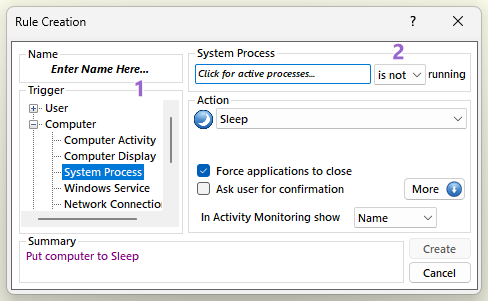
Occurs when the given process is either running or stopped. In order to create a rule using this kind of trigger first select from the "Trigger" section 1 "Computer" → "System Process". Then from section 2 click on the "Click for active processes" text box and wait until AutoStandByPro populates all active processes. Select a process from the list or type the name of another process (please add .exe at the end of the process name if it does not exist). Finally select from the drop down menu either "is" or "is not" to indicate whether or not the process should be running or not.
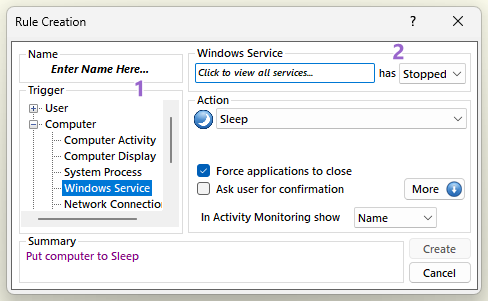
Occurs when the given service is either started or stopped. In order to create a rule using this kind of trigger first select from the "Trigger" section 1 "Computer" → "Windows Service". Then from section 2 click on the "Click to view all services" text box and wait until AutoStandByPro populates all services. Then select a service from the list and from the drop down menu choose either "Started" or "Stopped" to indicate whether or not the service should be started or stopped.
Occurs when there is an active connection (either local or from a remote machine) on the given "IP" or "Hostname" and given "Port". In order to create a rule using this kind of trigger first select from the "Trigger" section 1 "Computer" → "Network Connections". Then from section 2 enter in the "IP or Hostname" text field the ip or hostname of the machine that you wish to check if it has an active network connection and on the "Port" field enter the port that will be used for the connection. Finally on the drop down menu select either "Local" when you want to check if there is an active connection on local IP/Hostname at the given Port, or "Remote" when you wish to check if a remote machine with the given IP/Hostname at the given Port has a connection with the local machine.
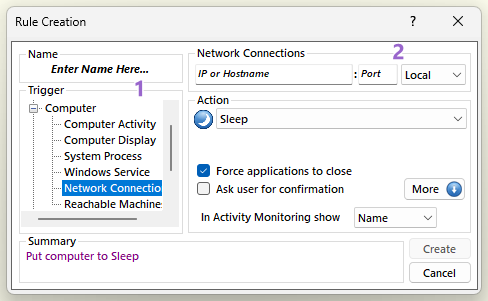
Please note that when you want to use any IP/Hostname address please enter the character '*' in the "IP or Hostname" text box field. When you want to check connections at any port enter in the "Port" text box the number "0". You can not user at the same time the character '*' for IP or Hostname and the number 0 for the port.
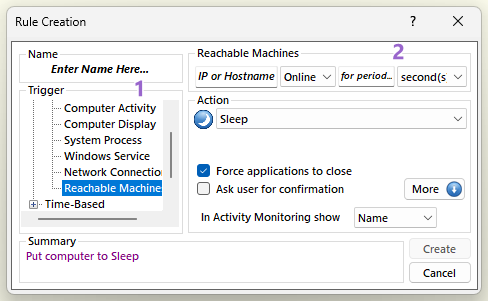
Occurs when the given machine is either reachable or not on the network. In order to create a rule using this kind of trigger first select from the "Trigger" section 1 "Computer" → "Reachable Machines". Then from section 2 first enter the "IP or Hostname" of the machine you wish to check. Then from the drop down menu select either "Online" to indicate whether you wish the trigger to activate if the machine is reachable through the network, or "Offline" to indicate that you wish the trigger to activate if the machine can NO be reached. In the "for period..." text box enter the period and from the next drop down menu select either "seconds", "minutes", "hours" or "days". The given period indicates the period of which the machine must either online or offline before the trigger is activated.