Actions
AutoStandByPro will execute actions when the corresponding Trigger (condition) of the Rule is met. In order to select an action for a specific rule, first open the "Create Rule" window by either either Creating a new rule or Modifying an existing one.
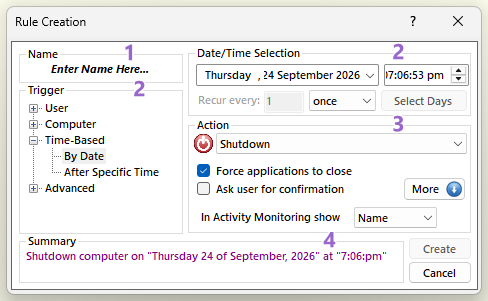
Then from the section 3 of the "Create Rule" window select from the drop down menu select one of the Supported Actions.
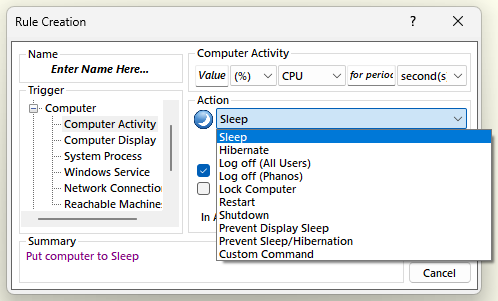
On the same section you can also choose to enable/disable the following options:
-
Force applications to close
AutoStandByPro will force the execution of the action by forcing any running application to close. This can help if your computer hangs during restart, shutdown, logoff etc due to an application that refuses to be closed.
Please note that this option is not applicable to all actions and can cause you to loose unsaved work.
- Ask user for confirmation
AutoStandByPro will prompt the user to confirm the execution of the action or disable/reset the corresponding rule before executing the action. For more options and information see Rule Settings.
The “Confirm Action Execution” window shows the action about to be executed and two buttons: “Confirm”, which executes the action now, and a second button that disables or resets the rule instead (“Postpone” for a repeating By Date rule, which postpones the action; “Disable” for other Time-Based rules). The default button shows a countdown in brackets; if you do not answer before it reaches zero, AutoStandByPro chooses the default button for you. Which button is the default is set in Rule Settings.
Please note that this option is not applicable to the actions "Prevent Display Sleep" and "Prevent Sleep/Hibernation".
- In Activity Monitoring show "Name/Description"
Select from the drop down menu either "Name" or "Description". This option affects the second column at the "Activity Monitoring" window. If you select "Name" then AutoStandByPro will display at the second column of the "Activity Monitoring" the given "Name" provided in section 1. If you select "Description" then AutoStandByPro will display at the second column of the "Activity Monitoring" a predefine build-in description.
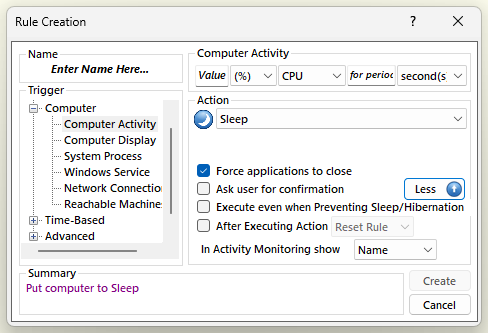
Additionaly in section 3 you can click the button "More" and enable/disable the following options:
-
Execute even when Preventing Sleep/Hibernation
AutoStandByPro will allow this rule to be activated even when there is another active rule that is Preventing Sleep/Hibernation.
- After Executing Action either "Reset Rule" or "Disable Rule"
If selected AutoStandByPro will override the default behavior of the "After Executing Action" setting that is set in the Rules Settings window. The option can be either to reset or disable the rule after executing its associated action.
Please note that this option is not applicable to the actions "Prevent Display Sleep" and "Prevent Sleep/Hibernation" and to a "Time-Based Rule".