Manage Profiles
Profiles can be manage under the “Rules Table” window. Under the "Profiles" menu of the "Rules Table" window there are the following options:
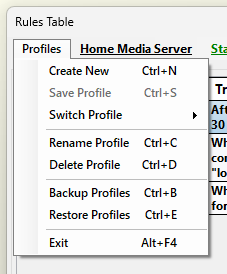
- Create New
Creates a New Profile with the given name.
- Save Profile
Saves any changes to the current active profile without applying them. User will be ask to apply the changes. after he/she choses to exit the "Rules Table" window
The menu "Save Profile" will activate only when the user has made some changes in the current active profile.
- Switch Profile
Provides a list will all the avalilable profiles. User can select from the list which profile he/she wishes to switch to in order to manage it.
When switching between profiles in the "Rules Table" window it will not have any effect in the “Activity Monitor” window until you click on the "Apply" button and save the changes. For more info please see “Switch Between Profiles”
- Rename Profile
Renames the current active profile.
- Delete Profile
Deletes the current active profile. User will be asked to confirm before deleting the profile.
- Backup Profiles
Backup the entire list of profiles. For more info see Backup Profiles.
- Restore Profiles
Restores an entire list of profiles from a backup file. For more info see Restore Profiles.
- Exit
Exits the "Rules Table" window. If there are unsaved changes AutoStandByPro will ask for confirmation before exiting. Answer "Yes" if you wish to exit and loose any unsaved changes or "No" to return to the "Rules Table" window.