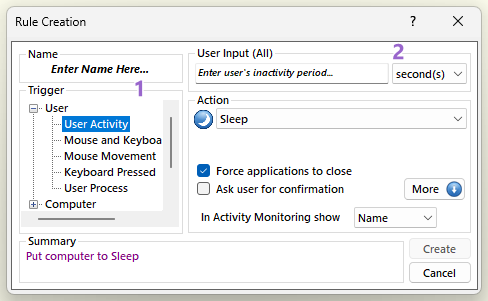
Occurs when there is no user activity (either mouse or keyboard) for the given period of time. In order to create a rule using this kind of trigger first select from the "Trigger" section 1 "User" → "User Activity". Then from section 2 enter the inactivity period and from the drop down menu select either "seconds", "minutes", "hours" or "days".
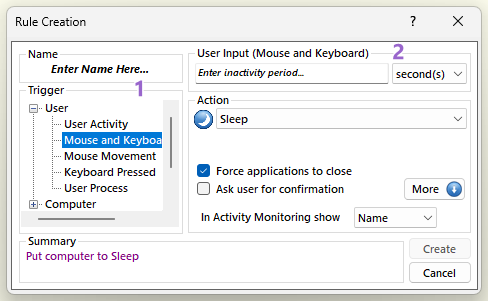
Occurs when there is no mouse and keyboard activity for the given period of time. In order to create a rule using this kind of trigger first select from the "Trigger" section 1 "User" → "Mouse and Keyboard Activity". Then from section 2 enter the inactivity period and from the drop down menu select either "seconds", "minutes", "hours" or "days".
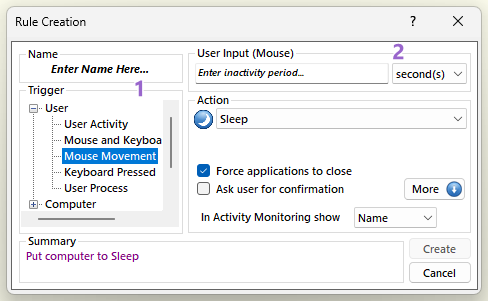
Occurs when there is no mouse activity for the given period of time. This is an AutoStandByPro Plus feature; without Plus, use "Mouse and Keyboard Activity" instead. In order to create a rule using this kind of trigger first select from the "Trigger" section 1 "User" → "Mouse Movement". Then from section 2 enter the inactivity period and from the drop down menu select either "seconds", "minutes", "hours" or "days".
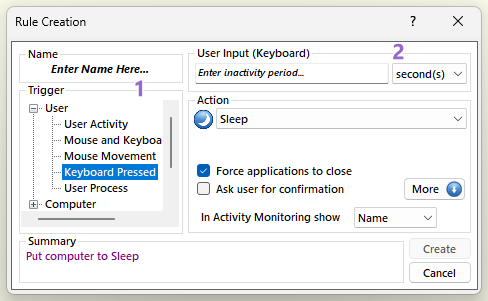
Occurs when there is no keyboard activity for the given period of time. This is an AutoStandByPro Plus feature; without Plus, use "Mouse and Keyboard Activity" instead. In order to create a rule using this kind of trigger first select from the "Trigger" section 1 "User" → "Keyboard Pressed". Then from section 2 enter the inactivity period and from the drop down menu select either "seconds", "minutes", "hours" or "days".
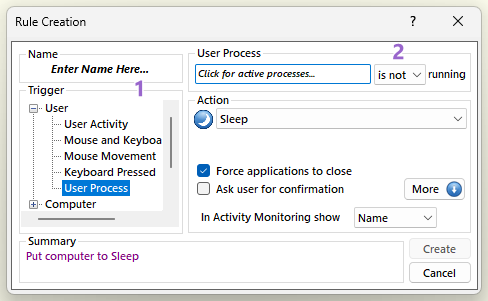
Occurs when the given process is either running or stopped under the current account. In order to create a rule using this kind of trigger first select from the "Trigger" section 1 "User" → "User Process". Then from section 2 click on the "Click for active processes" text box and wait until AutoStandByPro populates all active processes that run under the current account. Select a process from the list or type the name of another process (please add .exe at the end of the process name if it does not exist). Finally select from the drop down menu either "is" or "is not" to indicate whether or not the process should be running or not.