Simple Profile Wizard
AutoStandByPro includes a "Simple Profile Wizard" that can create a basic but still powerful profile. The "Simple Profile Wizard" will guide the user through a few simple steps and after he/she has answered a few questions the new profile will be automatically created and loaded at the end of the wizard.
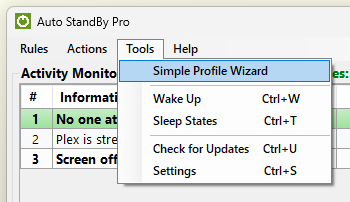
In order to use the "Simple Profile Wizard" please first open the “Activity Monitor” window and from the "Tools" menu select "Simple Profile Wizard"
The "Simple Profile Wizard" has four simple steps:
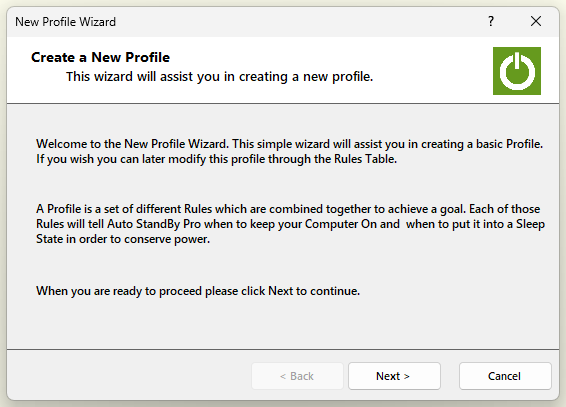
- Introduction Screen. In the first step some general information regarding the wizard is given. Please click on "Next" to continue.
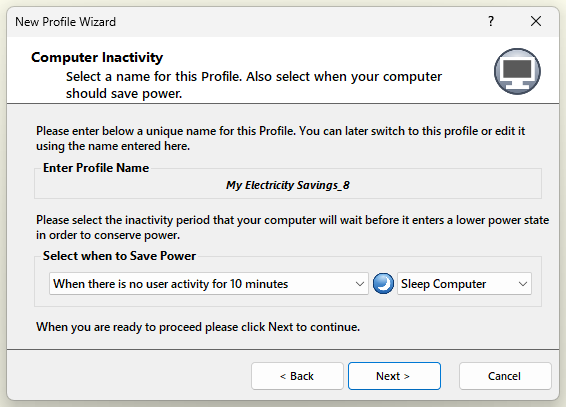
- Save Energy. In the second step first please specify a name for the new profile (a sample name will be provided by default). Then please specify after how much time your computer must remain inactive before it enters a lower power state. Finally specify which low power state you wish your computer to enter after the inactivity period. The available options are "Sleep Computer", "Hibernation Computer", "Restart Computer" or "Shutdown Computer". When you are done please click on "Next" to continue.
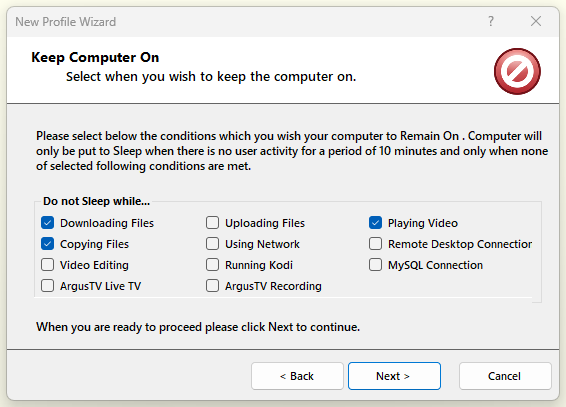
- Prevent Sleep/Hibernation. In the third step you are requested to specify in which conditions your computer must remain on. You can select from none to all of the conditions shown on the third step. When you are done please click on "Next" to continue. AutoStandByPro will ask for confirmation (“Create Profile”) before attempting to build your new profile. Click "OK" to continue.
The “ArgusTV Live TV” and “ArgusTV Recording” conditions create HTTP (Get) rules, so they are available with AutoStandByPro Plus only; without Plus they are shown greyed out with “(Plus)”.
- Create Profile. In the fourth and last step the "Simple Profile Wizard" will display information while it creates and configures your profile. If everything goes well please click on "Finish" to save and apply your new profile and start using it. Click on "Ok" when prompt.
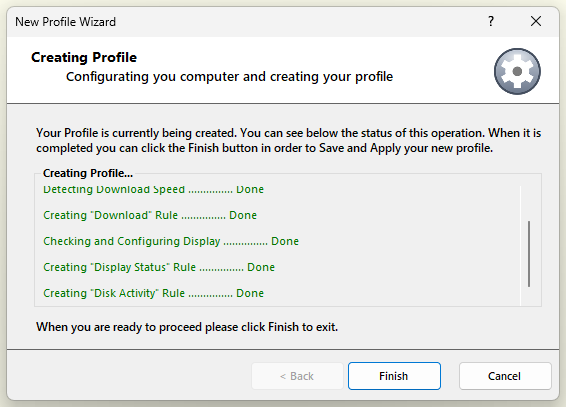
Please note that while the wizard is creating and configuring your profile you can cancel and return to the previous step by clicking on the "Back" button. However after the wizard has finished with the creation of the profile you can no longer return to any previous step. In this case please restart the "Simple Profile Wizard".
In case you need to cancel the wizard at any time please click on the "Cancel" button and answer "Yes" when prompt.