Activate a Plus License
To turn on AutoStandByPro Plus you need the license key you received when you purchased it. You can activate it Online (using an active internet connection) or Offline (using an activation file, for a computer without internet access). One license key can be active on up to 5 of your own computers at once; see Moving your license to another computer.
- Online Activation
Open the “Activity Monitor” window and from the “Help” menu select “Activate Plus License...” and then “Online”.
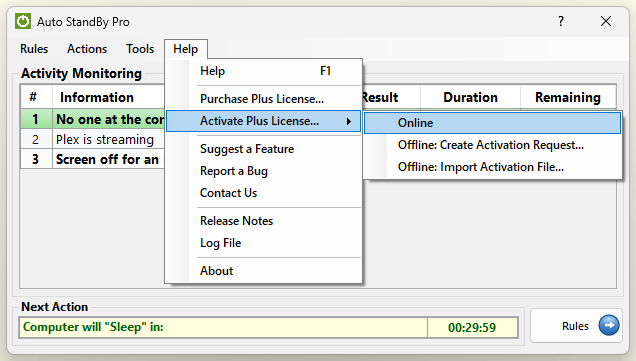
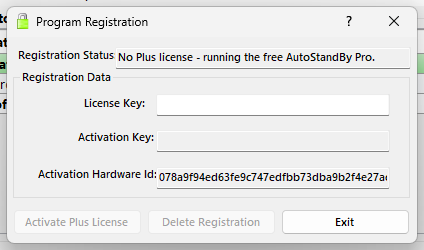
In the “Program Registration” window enter your license key in the “License Key” field and click the “Activate Plus License” button. When the activation succeeds, the “Registration Status” shows who the license belongs to and the Plus features are enabled straight away. If the key is already active on 5 computers, activation is refused with the message “Too Many Computers”: release a computer you no longer use, then activate again.
- Offline Activation
On the computer you want to activate, open the “Activity Monitor” window and from the “Help” menu select “Activate Plus License...” and then “Offline: Create Activation Request...”. Choose where to save the activation request file and click “Open” to save it.
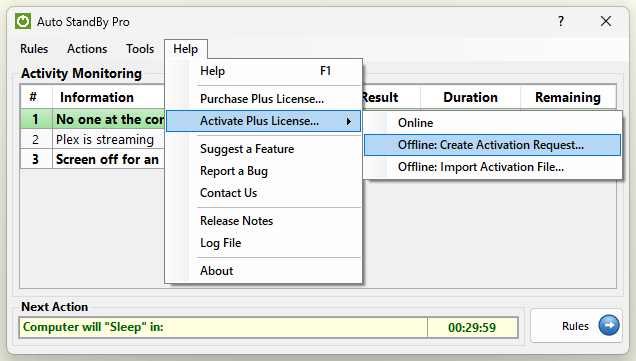
Copy the file to a computer with internet access, log in to your account on the AutoStandByPro website, open “My Licenses” and click “Activate Offline” next to your license key. Upload the request file, then download the activation file. The activation file only works on the computer that created the request, and must be imported within 24 hours (if it expires, upload the request file again for a new one). Copy the activation file to the computer you want to activate, then from the “Help” menu select “Activate Plus License...” and then “Offline: Import Activation File...”. Select the activation file, click “Open” and then “Yes” in the “Import Registration Details” window. The 5-computer limit applies to offline activation too.
Activating a Plus license also starts the background service, and deleting it stops the service again. Windows may show a permission prompt for this; if you decline, AutoStandByPro keeps working without the service.
Moving your license to another computer
A license key can be active on up to 5 of your own computers at once. To use it on another computer once all 5 are taken, first free a place by releasing a computer you no longer use:
- On the computer itself – open the “Program Registration” window as above and click “Delete Registration”. This removes the Plus license from that computer and frees its place on your key. AutoStandByPro keeps working without the Plus features, and you can activate the same key on it again later. If the computer cannot reach the internet at that moment, the license is still removed, but its place is only freed once you release it from “My Licenses”.
- From the website – log in to your account and open “My Licenses”, which lists every computer your key is active on. Click “Release” next to the one you no longer use, for example a computer that was replaced, sold or wiped. If that computer is still running AutoStandByPro, the Plus features switch off on it the next time it checks in with the license server.
A Plus license is tied to the hardware of the computer it was activated on. If you change the main hardware of a computer, it counts as a new computer: activate the license key on it again, and release its old entry from “My Licenses”.
If a license key is misused (for example shared publicly), it can be revoked. Activating a revoked key fails with the message “License has been revoked” and the reason. AutoStandByPro also checks the license online from time to time; if the key has been revoked, the Plus features are switched off on that computer and AutoStandByPro keeps working as the free edition. If you think a key was revoked by mistake, contact [email protected].