Manage Rules (Batch)
AutoStandByPro supports batch processing or rules through the “Rules Table” window. In order to batch process the rules in the currently active profile first open the Rules Table and locate the currently active Profile name under the menu.
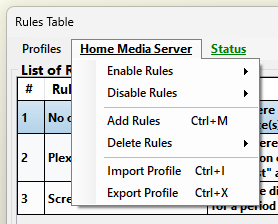
Under the Profile Menu there are the following options:
- Enable Rules
Enables either All rules or just the Selected ones.
Please note that the submenu "All" or "Selected" will be available only when the corresponding command has some value. For example if the all the rules in the current active profile are enabled then the "All" option will be disable.
- Disable Rules
Disables either All rules or just the Selected ones.
Please note that the submenu "All" or "Selected" will be available only when the corresponding command has some value. For example if the all the rules in the current active profile are disabled then the "All" option will be disable.
- Add Rules
Add/Merge rules from another profile into the current active profile. After clicking on the "Add Rules" use the new window to navigate to the folder containing the file with the new set of rule(s) you wish to add/merge to the current active profile. Then select that file and click on the button “Open”. If you wish to cancel the procedure then please select “Cancel”.
If you have selected to continue and there are existing rule(s) in the current profile then AutoStandByPro will ask for confirmation before continuing. Click “Yes” to continue. The new set of rule(s) will appear below the any current set of rule(s) in the active profile.
- Delete Rules
Deletes either All rules or just the Selected ones.
Please note that the submenu "All" or "Selected" will be available only when the corresponding command has some value. For example if the all the rules in the current active profile are disabled then the "All" option will be disable.
- Import Profile
Imports the selected profile into the list of profiles in AutoStandByPro. After clicking on the "Import Profile" use the new window to navigate to the folder containing the file with the Profile that you wish to add to your list of profiles. Then select that file and click on the button “Open”. If you wish to cancel the procedure then please select “Cancel”.
If another profile with the same name exists then AutoStandByPro will rename the imported profile to something else and prompt you for confirmation before continuing. Click “Yes” to continue. The new profile will be imported and become the active profile in the "Rules Table" window.
- Export Profile
Exports the currently active profile into a file. After clicking on the "Export Profile" use the new window to navigate to the folder that you wish to save the exported profile and then type the preferred filename in the “File name” text box then click on the button “Open. If you wish to cancel the procedure then please select “Cancel”.
If you have selected to continue then AutoStandByPro will export and save the currently active profile and provide a message when completed. If the file is already present when attempting to export the profile, then AutoStandByPro will ask for confirmation before overriding the existing file. If the export was unsuccessful then a corresponding window will appear with a relevant message.
In order to batch process more than one rule at the same time you can select multiple rules under the Rules Table. In order to select multiple rules please hold down the Ctrl key on your keyboard and select each of the requested rule just once. If you wish to deselect a rule the while holding down the Ctrl key on your keyboard please click again on that rule.
In order to save and apply the changes you have to click on the button "Apply" on the "Rules Table" window.